Word Reader - Docx/PDF Viewer
- 4.3
- Rating
- 10.00K
- Installs
- Free
- Price
 Analysis by App-foxy
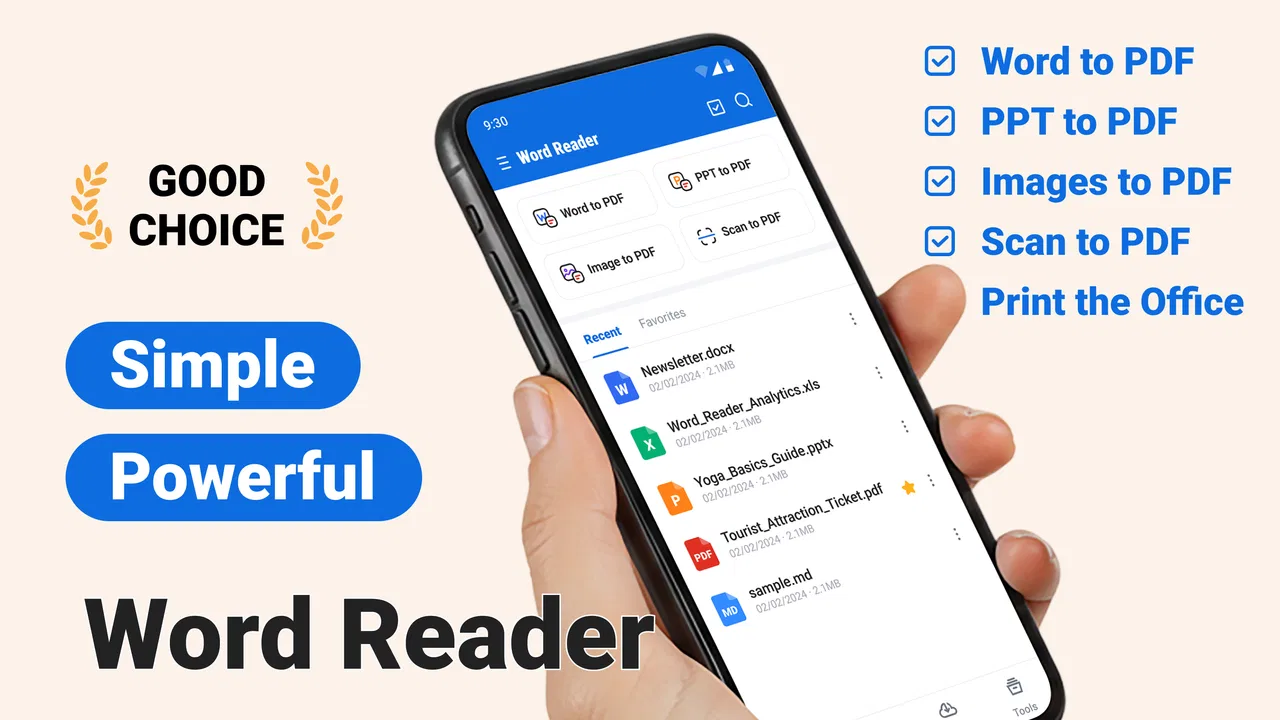
When I open a document on a phone, I usually want one thing first: to read it without fighting the screen, menus, or file format. Word Reader - Docx/PDF Viewer is built around that simple need, with a focus on opening Word, DOCX, Office, and PDF files in one mobile workspace. I reviewed it as a business app from Eternal Mobile Labs, and its most useful idea is not that it tries to replace every office tool. It is that it gives everyday documents a single place to be viewed, checked, scanned, and edited.
That makes it especially relevant if your phone regularly receives invoices, meeting notes, application forms, contracts, or reports. Instead of switching between a document reader, a scanning tool, and a PDF utility, you can use one app as the starting point. My overall impression is positive, but with an important qualification: this is more convincing as a practical document companion than as a complete replacement for a desktop office suite.
One document workspace instead of several separate tools
The central capability is the combination of Word and PDF viewing with scanning and PDF editing. Those functions matter because real document work is rarely limited to opening a finished file. I may receive a DOCX attachment, need to inspect a page, scan a signed sheet, and then make a small correction or prepare the result for sharing. A reader that handles only one stage leaves me reaching for another app almost immediately.
You May Also Like

 AccuWeather: Weather Radar
AccuWeather Review: A Quick, Clear Forecast for Everyday Decisions
For everyday plans, the best forecast is the one you can understand quickly. AccuWeather makes rain timing, radar, and local conditions easy to act on, with a few trade-offs.

 Hill Climb Racing
Why Hill Climb Racing Still Turns Crashes Into One More Run
A tiny car, a bumpy hill and one more upgrade: Hill Climb Racing keeps resurfacing because its simple chaos makes every near-miss feel personal.

 AliExpress - Shopping App
AliExpress Makes Global Shopping Feel Personal, but Shoppers Bear the Risk
AliExpress turns a global marketplace into a pocket-sized discovery engine. Its reach is useful, its shopping loop compelling, and its trade-offs easy to miss.

 Lords Mobile: Kingdom Wars
Lords Mobile Is a Kingdom-Building Routine, Not a Quick Match
A case-by-case verdict on the building, battles, device demands, and social commitments that make Lords Mobile rewarding for some players and exhausting for others.

 PDF Scanner app - TapScanner
TapScanner Makes Paperwork Easier to Capture, Check, and Share
TapScanner makes scanning with a phone feel less like a rescue operation and more like a dependable step in getting work done. Its capture tools are useful, though not flawless.

 Block Blast!
 Shows How Much a Puzzle Game Can Leave Out
A quiet grid game shows why puzzle players increasingly value instant clarity, repeatable skill and low-pressure play—and where the genre still needs to catch up.
More From Our News Desk
View All News


Here, the value comes from keeping that chain together. The document viewer is the entry point, while the scanner and editor make the app more useful after the file is already on the phone. I found this approach more practical than judging the app only by whether it can display a Word file. The real question is whether it reduces interruptions during small, urgent tasks, and this is where the app has a clear purpose.
The short name “Word Reader” may make it sound narrower than it is. In practice, the product is aimed at people who handle several common office formats, not only traditional Word documents. That distinction is important for anyone who gets a mixture of DOCX files, PDFs, and other Office material during a normal workday.
It is available as a free app for everyone, which lowers the barrier to trying it for occasional document work. The app has passed ten thousand installs and holds a 4.3 average from thirty-six ratings, so there is enough public use to suggest that the basic idea is landing with some users. I would still treat those figures as an early signal rather than a definitive verdict, because the review count remains small.
What the combined workflow changes
The biggest practical change is that a document does not have to leave the app just because its form changes. A file can begin as an attachment, become something you inspect on a commute, and then turn into a scanned or edited PDF when you need to send it onward. That continuity is more valuable than it sounds. Every extra app introduces another file picker, another storage location, and another opportunity to lose track of the latest copy.
I also like the way this setup encourages a “review first, edit second” habit. On a phone, it is easy to make a quick change before noticing that the source document is incomplete or poorly formatted. Opening the file in a dedicated viewer first gives me a chance to check whether the pages, headings, and important details are present before I create a new version.
There is a useful trade-off here. A focused document app can feel quicker for a narrow task than a large office suite, but it will not necessarily offer the depth of a full desktop editor. If your work depends on complex layouts, advanced spreadsheets, extensive collaboration, or detailed revision control, I would keep a conventional office solution available and use this app for mobile access and quick document handling.
How I would use it during a normal workday
Imagine that a supplier sends a DOCX quotation while I am away from my computer. I can open it on the phone, read the totals, check the wording, and decide whether it needs a response immediately. Later, someone hands me a paper approval sheet. Rather than photograph it casually and hope the result is readable, I can use the scanner function to turn it into a more useful digital document. If the final delivery needs to be a PDF, the editing side of the app becomes the next step instead of a separate search.
This scenario reveals a less obvious strength: the app is not only about reading files already stored on the device. It can fit into the messy middle of document work, where paper, attachments, and revised copies meet. That is the point at which many simple readers stop being helpful. The ability to move from viewing into preparation makes this app more suitable for field work, small businesses, students, and anyone who deals with paperwork away from a desk.
For the best experience, I would create a simple personal rule: use the viewer to confirm the source, use the scanner only for pages that genuinely need digitizing, and edit the PDF only after deciding what the recipient actually needs. This prevents the common problem of producing several nearly identical files with unclear names. The app cannot solve poor file organization by itself, but its all-in-one design makes a disciplined workflow easier to maintain.
Where the scanner and editor are most useful
The scanner is most valuable when the original is a physical page that must become part of a digital exchange. Think of a signed acknowledgment, a handwritten note from a meeting, a receipt, or a form completed on paper. In those cases, the benefit is not merely convenience. It is the ability to bring a document into the same workflow as the files you already read on the phone.
The PDF editor is best viewed as a finishing tool for mobile tasks. I would use it for corrections, preparation, or a last check before sending a document, rather than expecting the same control I would have with a full professional publishing application. That distinction helps set realistic expectations. Mobile editing is valuable precisely because the job is small and time-sensitive; it becomes frustrating when the document needs extensive redesign.
One practical tip is to inspect the result after scanning instead of assuming the first capture is good enough. A page can look readable in the camera view but become awkward once it is part of a multipage PDF. Check the edges, orientation, and legibility before sharing. This is not a glamorous feature, but it is the difference between a scan that saves time and one that creates another round of work.
Another useful habit is to keep the original file separate from the edited copy. If I receive a contract or report, I want the untouched source available even after making a PDF version. The app’s combined workflow makes it tempting to treat the latest file as the only file, so careful naming and separate storage still matter.
The best scenario: mobile document triage
The strongest use case is what I would call mobile document triage: opening a file quickly, deciding what matters, and taking the next practical action without waiting to reach a computer. This suits managers reviewing attachments, freelancers checking client paperwork, students reading course documents, and small business owners handling forms between appointments.
In that situation, the app’s value is measured in fewer interruptions rather than advanced creative control. I can read a Word document, inspect a PDF, scan a related page, and prepare a revised PDF from one familiar place. The workflow is especially helpful when the phone is the only device available for a few minutes and the task cannot wait until the evening.
It also works well for people who are not interested in learning a large office suite. A full productivity package can be powerful, but its many tools may be unnecessary when the immediate job is simply to open a document and make it usable. This app feels more approachable for that narrower purpose, particularly for occasional users who need document access without building an elaborate system.
There is a second scenario where it makes sense: checking documents before a meeting. I can open an agenda or proposal, review the important pages, and scan a paper note afterward so that the meeting record stays digital. That combination is more useful than a basic viewer because it connects preparation with follow-up. It does not turn the phone into a complete office, but it covers the handoffs that commonly cause delays.
Trade-offs you should understand before relying on it
The first limitation is depth. A viewer, scanner, and PDF editor in one app may be convenient, but convenience does not automatically equal professional-grade control. If your documents contain demanding layouts or require detailed formatting work, a dedicated office application on a larger screen will probably be the better choice. I would use this app to handle the urgent part of the job, then move to a desktop tool when precision matters more than speed.
The second trade-off concerns the free model. The app is free to install, but it includes in-app purchases ranging from $2.99 to $89.99 per item. That wide range means I would check the purchase screen carefully before committing to a workflow that depends on paid functionality. For occasional reading, the free entry point is attractive. For frequent scanning or editing, it is worth understanding which tools are included and which may require payment.
I would also avoid assuming that every document will feel equally comfortable on a phone. Long reports, dense tables, and pages designed for large screens can still be tiring to inspect, even when the app opens them correctly. The application can improve access, but it cannot remove the physical limits of a small display. For serious proofreading, I still prefer a tablet or computer when one is available.
Another point is that a single workspace can become a single point of confusion if files are not managed carefully. When viewing, scanning, and editing happen together, it is easy to create multiple versions without remembering which one is final. My advice is to rename important outputs immediately and avoid editing the only copy of a source document. That small discipline makes the app much safer for business paperwork.
The current release is version 1.4.1 and supports devices running Android 8.1 or later. That makes it accessible to many older Android phones, although actual comfort will still depend on the device’s screen, storage, and general responsiveness. I would be more cautious about using it on an aging phone for large, image-heavy documents, where opening and navigating pages can be less pleasant than on newer hardware.
How it compares with familiar alternatives
Compared with a basic file viewer, this app offers a more complete path from opening a document to preparing one. A simple reader is fine when I only need to inspect a file, but it leaves me searching for a scanner or PDF tool as soon as paper enters the process. Word Reader - Docx/PDF Viewer is more compelling when those tasks regularly appear together.
Compared with a full office suite, the advantage is focus. A large suite usually makes more sense for writing substantial documents, managing spreadsheets, collaborating, or preserving complex formatting. This app is easier to justify when the priority is fast access to common office files and practical PDF handling on a phone. I would not choose it as my only productivity tool if my work is built around advanced editing.
Compared with a dedicated scanner application, the choice depends on the workflow. A specialist scanner may be preferable if scanning is the main job and you want a tool designed almost entirely around capture quality and document organization. This app becomes the better fit when scanning is only one step among reading DOCX files, checking PDFs, and making small changes.
That is the key trade-off in plain terms: you give up some specialization in exchange for fewer app switches. For me, that is worthwhile when the documents are ordinary business files and the work is short. It is less persuasive when one task dominates and demands the deepest available controls.
Who gets the most from this app
I think the best audience is people who handle documents in bursts rather than spending the whole day authoring them. Freelancers, students, mobile workers, small business owners, and office staff who frequently review attachments can all benefit from having a Word and PDF tool that also handles scans and edits.
It is also a good match for someone who often receives paperwork in mixed formats. If one message contains a DOCX file, another contains a PDF, and a physical form appears later, the app’s unified approach can reduce the mental overhead of deciding which tool to open. That is a specific advantage, not just a general promise of convenience.
I would recommend skipping it as a primary tool if you need extensive document composition, complex spreadsheet work, or highly controlled publishing. In those cases, a dedicated office suite or desktop editor is likely to be more reliable. I would also hesitate to make it the center of a team process unless its purchase options and file-handling routine fit the way your group works.
For occasional users, the free starting point makes experimentation easy. For regular users, the important question is not simply whether the app opens a file. It is whether combining viewing, scanning, and PDF editing saves enough time to justify any paid tools you choose to use. That answer will vary depending on how often paperwork arrives and how much of it begins on paper.
My final take after using the workflow
Word Reader - Docx/PDF Viewer succeeds because it addresses a very ordinary problem: documents do not arrive in one convenient format, and mobile work often involves more than reading. Its strongest capability is the connected workflow between Word and Office viewing, scanning, and PDF editing. That makes it more useful than a narrow reader when I need to move a document from “received” to “ready to send.”
I appreciate that it can serve as a practical bridge between a phone and a larger office setup. I can review something immediately, digitize a paper page, and prepare a PDF without opening several unrelated tools. The app is not a substitute for every professional document application, and the in-app purchase range means frequent users should examine the costs before depending on advanced functions.
Still, for the right person, the balance is sensible. If your everyday need is quick document triage rather than elaborate authoring, this app can make a phone feel considerably more useful. My recommendation is to try it with the exact files and workflow you handle most often. If one app switch disappears from your routine each time a document changes format, that is where this app earns its place.
FAQs for Word Reader - Docx/PDF Viewer
01What file formats does Word Reader - Docx/PDF Viewer support?
Word Reader - Docx/PDF Viewer primarily supports DOCX and PDF formats, making it versatile for viewing and reading documents. Additionally, it may also support other formats such as TXT and RTF, providing flexibility for users who deal with various document types. Always check the app's description for the latest compatibility updates.
02Is Word Reader - Docx/PDF Viewer easy to use for beginners?
Yes, Word Reader - Docx/PDF Viewer is designed with user-friendliness in mind. It features an intuitive interface, allowing users to easily open and navigate through documents without a steep learning curve. The app provides straightforward instructions and navigation tools, ensuring even those less tech-savvy can utilize its features effectively.
03Does Word Reader - Docx/PDF Viewer require an internet connection?
No, an internet connection is not required for basic document viewing. Word Reader - Docx/PDF Viewer allows you to access and read documents offline, which is especially useful for users who need to view documents on-the-go without relying on internet connectivity. However, downloading updates may require a connection.
04Are there any in-app purchases or ads in Word Reader - Docx/PDF Viewer?
Word Reader - Docx/PDF Viewer may include ads to support its free version, but it typically offers a premium version with no ads and additional features. In-app purchases may include enhanced functionalities such as advanced editing tools or cloud storage support. Checking the app store description will provide detailed information on pricing and features.
05What permissions does Word Reader - Docx/PDF Viewer require?
To function effectively, Word Reader - Docx/PDF Viewer may request permissions to access your device's storage. This allows the app to open and manage documents stored on your device. It’s crucial to review these permissions during installation to ensure they align with your privacy preferences.
Pros
- Easy-to-navigate interface.
- Supports multiple file formats.
- Fast document loading.
- Offline access available.
- Annotations and highlights supported.
Cons
- Ads can be intrusive.
- Limited editing features.
- Occasional crashes on large files.
- No cloud storage integration.
- Premium features require subscription.

Word Reader - Docx/PDF Viewer
Gallery